One workspace per company.Roles, attendance, teams and the work itself.
Soft Desk gives a company its own tenant, five roles with their own dashboards, check-in attendance with reports, departments and teams, and every module individuals get for each employee.
Your company is a tenant.Every record is scoped to it.
When a company registers it receives its own workspace. The person who registers becomes Company Admin. Employees are added to the company and log in through the same login page as everyone else, landing on the dashboard for their role.
People, attendance, time entries, projects, clients and invoices all belong to the company. Deactivating a person, or the company itself, revokes every session immediately.
- One tenant per company; no cross-company visibility
- Employees join the company and use the same login page
- Deactivation ends all of a person's sessions at once
Company
Your company
Every record below belongs to this company only.
Five roles.Each opens on what that person needs.
Company Admin
Dashboard shows
Company stats, quick actions and today's activity. Invites people, assigns roles, manages departments and teams.
HR
Dashboard shows
Pending leave requests and recent joiners.
Manager
Dashboard shows
Today's team status.
Team Lead
Dashboard shows
My team members.
Employee
Dashboard shows
My stats and this week.
Project roles
Inside each project, members have one of four roles, independent of their company role.
| Owner | The project's owner; the widest access within that project. |
|---|---|
| Admin | Administers the project alongside the owner. |
| Editor | Edits the project's board and tasks. |
| Viewer | Views the project; read-only. |
On the roadmap
Check in, check out.The day adds up on its own.
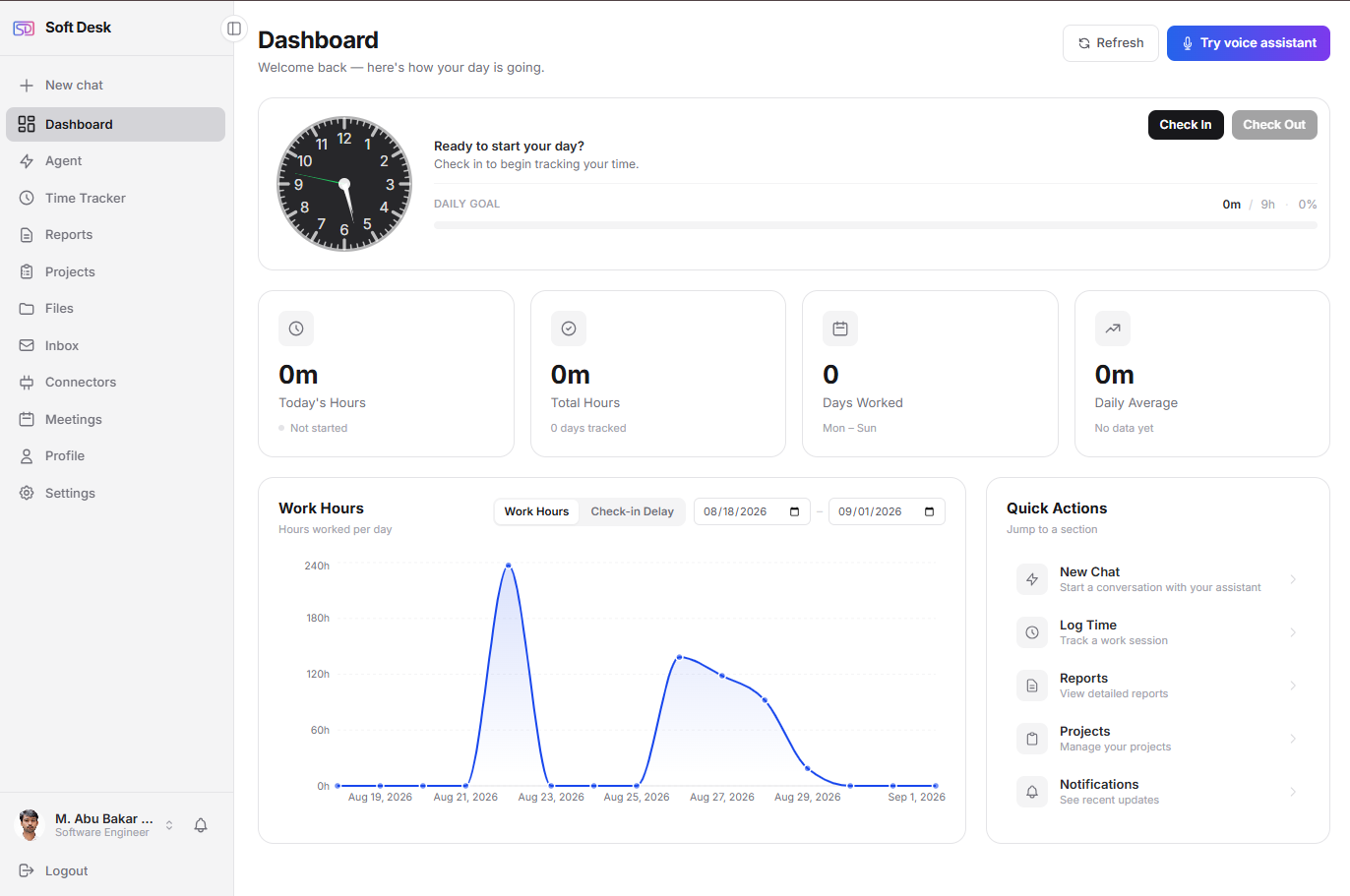
Each employee checks in and out from the dashboard against a working-hours goal. Overnight shifts are handled. The dashboard shows a weekly chart, a 15-day trend and quick stats.
Attendance is separate from time entries. Time tracking (a start/stop timer or manual entries, billable or not, linked to projects and tasks) records the work itself; overlapping entries are refused.
- Work reports by date range, attendance trends and project summaries
- CSV and PDF export from the Reports page
- Managers see today's team status; team leads see their members
Check in / check out
Working-hours goal per day; overnight shifts handled
Weekly chart
Hours per day this week
15-day trend
Attendance over the last fifteen days
Quick stats
Today and this week at a glance
Reports
Work reports by range, attendance trends, project summaries
People organized the way the company is.
Departments
Departments organize the company's people. Each employee belongs to the company's structure rather than a flat list.
Teams
Teams sit under the company. A Team Lead's dashboard lists the members of their team; a Manager's shows today's team status.
Projects with members
Projects have their own members and roles (Owner, Admin, Editor, Viewer), invitations, milestones, an activity log and project health.
Everything individuals get,for every person in the company.
The company layer sits on top of the same workspace each individual uses. Nothing is held back per role.
- Today page with a start-of-day summary
- Projects and Kanban boards with tasks, subtasks and dependencies
- Time tracking: timer, manual entries, billable or not
- Reports and analytics with exports
- Clients, invoices, payments ledger and finance overview
- Gmail inbox, Google Calendar meetings and Google Drive documents
- Notes, notifications, one fuzzy search
- Chat and voice assistant on the employee's own AI key
- Realtime sync across open tabs, dark mode, mobile-responsive
Stated plainly.What protects the workspace.
Sessions
Encryption and passwords
Revocation
AI privacy
Three steps.From first message to a working company.
- 1
Contact us
Tell us about the company: how many people, which teams, what you use today. Use the form below or the contact page. - 2
Workspace created
The company registers and receives its own tenant. The registering user becomes Company Admin. Pricing is agreed per company; no credit card is needed to try. - 3
Admin invites people, roles assigned
The admin adds employees, sets each person's role, and arranges departments and teams. Everyone logs in through the same login page.
Start the conversation.
Tell us the size of the company, the teams you want set up and anything you need to bring across. We reply by email.
- Pricing set per company during onboarding
- No credit card required to try
- Employees invited by your own admin
Common questions from companies.
A workspace for the whole company,set up with you.
Company onboarding starts with a conversation. Pricing is set per company; no credit card is needed to try.